Configure Your Iphone For roadrunner Mail:A Quick Guide
How To Configure Your Iphone For Roadrunner Mail:
Effectual Steps to Setup Roadrunner Email
Step 1: Select the Settings icon on your home screen

Step 2: Select Mail
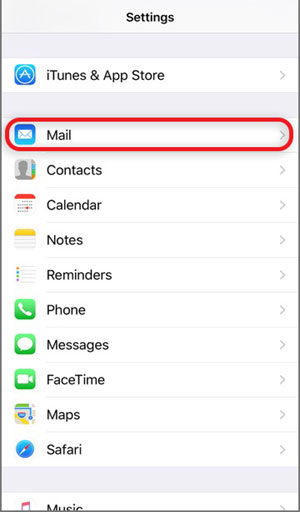
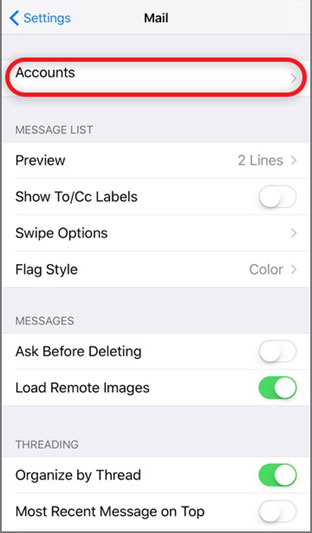
Step 3: Select Accounts
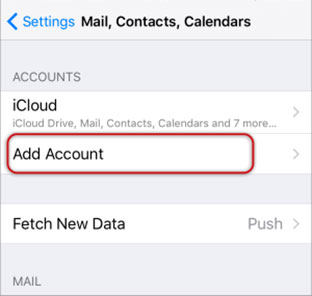
Step 4: Select Add Account
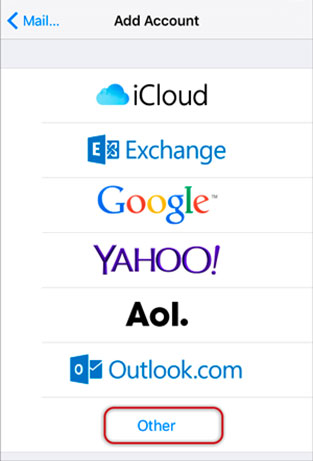
Step 5: Select Other from the menu
Step 6: Select Add Mail Account
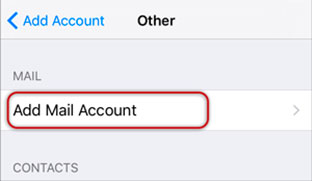
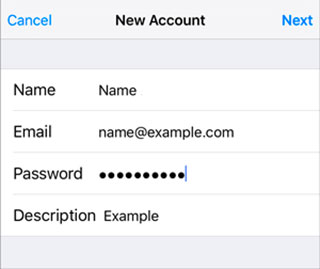
Step 7: Enter your Name, Email & Password and then click Next
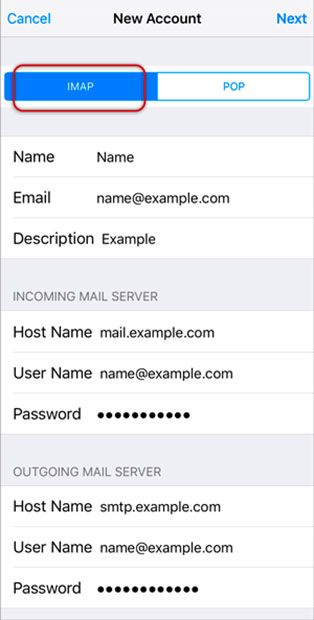
Step 8: Select IMAP . Scroll down to Incoming Mail Server and enter all the relevant details, then do the same for Outgoing Mail Server, as in the screen below and then select Next.
- Ensure that User Name is the full email address. User Name & Password are the same for both Incoming & Outgoing servers.
- Incoming Mail Server Host Name is mail.twc.com
- Outgoing Mail Server Host Name is mail.twc.com
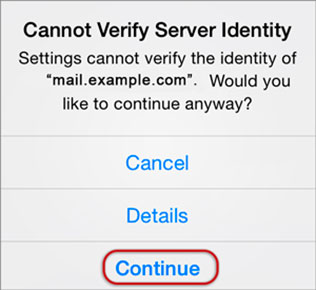
Step 9: You may receive a prompt asking you to verify the incoming and outgoing servers – you can click continue for each or tap "Details" and then tap "Trust"
Step 10: Save
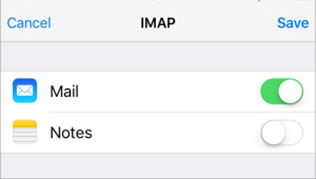
Step 11: Choose the new account that you’ve just created
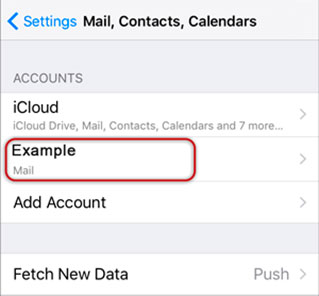
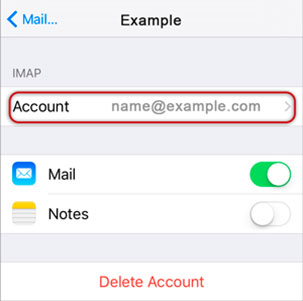
Step 12: Choose the SMTP server
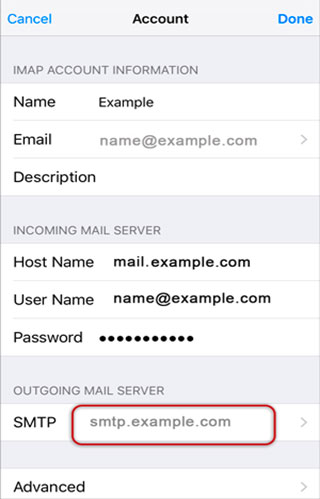
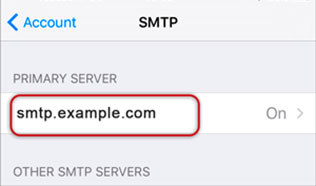
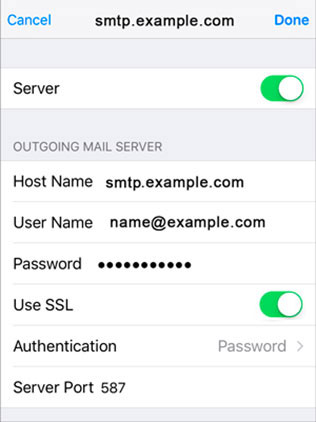
Step 13: Check the SMTP settings and click Done
- Outgoing Mail Server Host Name for ROADRUNNER.COM is mail.twc.com
- User Name: Full ROADRUNNER.COM email address
- Password: Your email password
- Use SSL is On. You can also turn it off and use the correct Port number as below.
- Outgoing (SMTP) Secure - Port: 465 for and Security Type: SSL/TLS (Accept all certificates)
- Outgoing (SMTP roaming server) Secure - Port: 587 and Security Type: SSL/TLS (Accept all certificates)
- Outgoing (SMTP) - Port: 25 and Security Type: None (Accept all certificates)
- Outgoing (SMTP roaming server) Insecure - Port: 587 and Security Type: None (Accept all certificates)
- Authentication is Password
- Server Port is 587
Congratulations! You are all done here and ready to use your email account on your iPhone. If you still have problems please visit this Blog.
Really great article !! thanks for sharing your helpful information for us, and I would like to say that please continue sharing your information.
ReplyDeleteMost Roadrunner email clients may have quit utilizing their records, while the rest may have been battling to get to their records through some worker or the other.
roadrunner email settings
twc roadrunner email
Hello,
ReplyDeleteI read your article, it’s one of the best post, interesting and very useful. Thank you For sharing this post, I really appreciate your work.
Thank You.
https://xn--stak-8oa.com/